


myPatientVisit Portal
4.839.00 Reviews
App Specs
- Version
- 6.136.0
- Updated On
- License
- Free
- Downloads
- 10,000+
- Developer
- Nextech Systems, LLC
- Categories
- Medical
- Platform
- Android
Screenshots
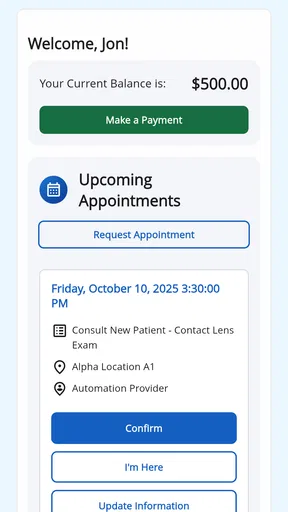
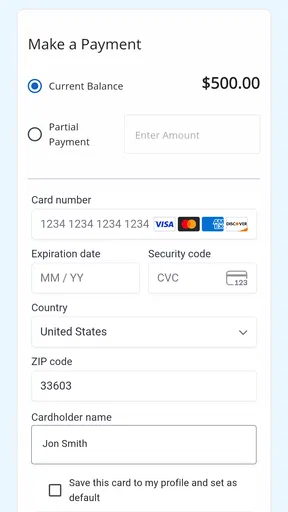
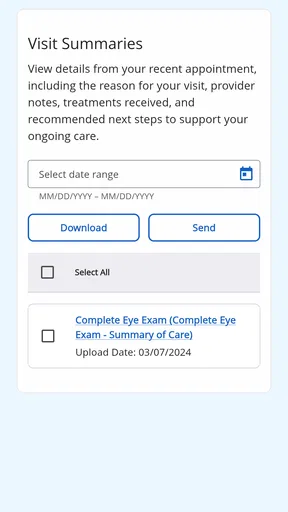
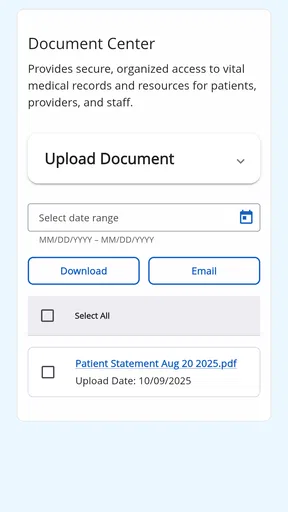
 Analysis by AppCompare
When a medical practice tells you to use myPatientVisit Portal, the most useful way to think about it is as a mobile doorway into your existing patient relationship, not as a replacement for a doctor, a walk-in clinic, or emergency care. I found the app most appealing for patients who want a simpler way to stay connected with a practice that already uses the myPatientVisit service. It is free, rated for Everyone, and developed by Nextech Systems, LLC.
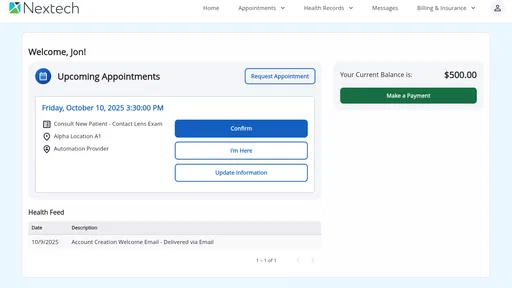
The app’s main promise is convenience: patients using the myPatientVisit system can use a mobile-ready option instead of relying entirely on a desktop browser or a paper-based routine. That sounds modest, but it matters when you are trying to handle a healthcare task from a phone while commuting, sitting in a waiting room, or looking after someone at home. The important first question is not whether it is a complete medical toolkit. It is whether your healthcare provider uses this portal and has invited or enabled you to use it.
What to expect before you begin
My first recommendation is to install the app only after confirming that your practice works with myPatientVisit Portal. A portal app cannot create a relationship with a clinic that does not use the underlying system. This is the first practical distinction between this app and a general health tracker: it is tied to communication with a participating medical provider rather than being useful on its own.
That also shapes the experience. You should expect a patient-facing portal, not a diagnostic tool. It is designed around access to your care relationship, while a fitness app may focus on steps, sleep, or exercise and a symptom checker may offer general information. Those alternatives can be useful for different reasons, but they do not serve the same purpose. Here, the value comes from using the channel your practice has chosen.
The app is listed in the medical category and has an average rating of 4.8 from around 379 ratings, with 39 written reviews. It has passed 10K+ installs, which suggests that it is established enough to be familiar to a meaningful group of patients without making it a universal healthcare platform. I would treat those figures as a sign of general acceptance, not as a guarantee that every clinic offers the same experience.
Because the portal is connected to a healthcare provider, the quality of your experience can depend on how that practice manages patient communication. A smooth app cannot make an unresponsive clinic respond faster, and a helpful portal cannot replace a conversation that needs clinical judgment. I found it helpful to separate technical convenience from medical urgency before using it.
Who will benefit most
This app makes the most sense for someone who already has an appointment or ongoing care with a participating practice and wants a phone-based route to patient-portal tasks. It may be especially useful if you dislike logging into websites on a small browser screen, if you often handle healthcare matters between errands, or if you help a family member keep track of routine contact with a provider.
Worth Reading Before You Choose

Flipboard Shows What News Apps Must Do Beyond the Feed

Switching to Android Auto Means Rethinking Your Driving Routine

Google Calendar Makes a Crowded Week Easier to Manage

Ludo King Makes the Most of the Minutes Between Plans

Baby Panda World Brings Quick Play to Modern Phones, but Its Game Library Feels Busy

ESPN’s Live Game View Makes Following Close Games Easier
It is less suitable for someone looking for medication reminders, wellness coaching, a symptom diary, or independent medical advice. Those are different jobs. I would also skip it as a first choice when you need immediate attention. A portal is not the place to wait for help during a medical emergency, and no mobile interface should be treated as an emergency response service.
The age rating is Everyone, which makes the app broadly approachable from a content-rating perspective. That does not mean that every patient will find the setup equally easy. Older adults, people sharing devices, and anyone uncomfortable with account credentials may still need a little help at the beginning. In those cases, I would assist with navigation without taking control of private health information unnecessarily.
Installing it without creating avoidable problems
The app is free, so the initial decision is straightforward. Before opening it, I would have the practice’s instructions nearby and make sure I know which email address, phone number, or account details the clinic expects me to use. The safest approach is to follow the provider’s own invitation or onboarding instructions rather than guessing which account belongs to the portal.
I also recommend installing it on the phone you actually use for healthcare communication. Moving between devices can create confusion, particularly when you are trying to remember which account was used during registration. If a trusted family member helps you, decide in advance who will enter credentials and where those credentials will be stored. Convenience should not come at the cost of casually exposing medical information.
The current version is 6.136.0 and the minimum operating-system requirement is 10. That makes checking your device compatibility a sensible first step, especially if you use an older phone. If the installation is unavailable on your device, the practical alternative may be the provider’s regular patient-portal website or help from the practice, rather than repeatedly trying to force the mobile route.
From setup to a first useful result
I use the first successful session to establish a dependable routine, not to explore every screen at once. In this section, I focus on choosing one low-risk task, checking that the right patient context is open, and confirming the task is complete before I leave. That small sequence gives me a practical baseline for the everyday situations that can still cause confusion.
Start with one small objective
When I try a healthcare portal for the first time, I avoid exploring every screen immediately. I choose one concrete goal, such as confirming that I can reach the correct practice account or locating the area where the provider expects patients to manage portal communication. This reduces the risk of changing something unintentionally while I am still learning the layout.
After installation, open the app and follow the account instructions supplied by your practice. If you received an invitation, use that route rather than creating a separate identity from memory. If the practice gave you a particular sign-in method, keep the spelling and contact details consistent. A surprisingly common source of friction with patient portals is not the app itself but entering a different email address or using an account that the clinic does not recognize.
Once you are signed in, pause and verify that you are viewing the intended patient account. This is an important habit for anyone who helps a relative or manages more than one healthcare relationship. Do not assume that reaching a portal screen automatically means you are in the right profile. Checking the name or practice context before proceeding is a small step that prevents a much bigger privacy mistake.
The first successful action
A meaningful first success is not simply seeing the home screen. It is completing the specific task that brought you there. For example, if your practice asked you to use the portal to handle a routine interaction, follow that request and make sure the app shows a clear completion state before closing it. If your purpose is only to establish access, confirm that you can sign in again after briefly leaving the app.
I like to use a simple three-part check: I can open the app, I can identify the correct practice or patient context, and I can reach the relevant patient-portal area without getting lost. If one of those steps fails, I stop and resolve it rather than experimenting with unrelated settings. That approach is faster and safer than tapping through every option.
A realistic example would be a patient who receives a reminder from a dermatology practice while away from home. Instead of waiting until the evening to find a computer, the patient installs the portal app, follows the practice’s access instructions, verifies the account, and completes the requested routine action from the phone. The benefit is not a dramatic medical breakthrough. It is removing one delay from an ordinary healthcare task.
For a caregiver, the workflow needs extra care. You may be helping someone read instructions or navigate a screen, but the patient identity and account ownership still matter. I would let the patient review any sensitive information and make decisions themselves whenever possible. The app can make access more convenient, but it does not remove the need for consent and attention.
What to do when the first attempt fails
If you cannot sign in, first check the basics: the practice name, the account details supplied by the provider, and whether you are using the intended patient-portal route. Avoid repeatedly guessing passwords or creating multiple accounts. That can make it harder to tell whether the problem is a typing error, an invitation issue, or a provider-side account problem.
If the app opens but the expected practice connection is not apparent, contact the practice using its normal official channel. Explain what you installed, what you can see, and the exact point where the process stops. A concise description is more useful than saying only that “the app does not work.” Keep screenshots free of unnecessary personal information if you need to show the problem to someone else.
I would also distinguish an app problem from a care problem. A failed login can wait for technical assistance, but worsening symptoms or urgent concerns should be handled through appropriate medical services rather than a portal. This distinction is easy to forget because the app sits on the same phone where you receive other messages, yet its role remains administrative and communicative within your provider relationship.
Common points of confusion in daily use
Daily friction often comes from the boundary between a mobile portal and the clinic’s own workflow, rather than from tapping the wrong button. I look at how to distinguish account issues from a practice response that simply takes time, and when switching to a browser or calling the office is the more sensible next step. These distinctions help set realistic expectations for routine use.
The app is not a universal medical account
One of the biggest misunderstandings is expecting myPatientVisit Portal to work as a single account for every doctor, hospital, pharmacy, and laboratory. Its usefulness depends on the participating practice and the connection established with that provider. If another clinic uses a different portal, you may still need that clinic’s separate system. This is less convenient than a universal health identity, but it reflects how fragmented healthcare technology often is.
That fragmentation also explains why switching providers can feel confusing. A portal that worked well for one practice may not automatically carry over to another. Before deleting anything or assuming your old access has transferred, check the instructions from the new provider. Keeping a short private note of which portal belongs to which practice can save time, especially when several family members have different appointments.
A mobile portal is not the same as a browser shortcut
Some people may wonder whether installing an app is worthwhile when a patient portal can sometimes be opened in a phone browser. I think the answer depends on your routine. The app is more appealing if you regularly need mobile access and want a dedicated entry point. A browser may be preferable if you rarely use the portal, if you are managing several unrelated healthcare websites, or if you do not want another app on your phone.
The trade-off is simplicity versus flexibility. A dedicated app can make the intended patient workflow feel more direct, while a browser can be easier when you use a shared computer, change devices often, or prefer not to keep healthcare applications installed. Neither option changes the quality of the clinical service behind the portal. Choose the route that helps you reach the correct provider with the fewest mistakes.
Convenience does not remove privacy responsibilities
Because a phone is frequently shared, borrowed, or left unlocked, I would be careful about using the portal in public places. Avoid reading sensitive information aloud, check which account is active, and do not allow a helper to save credentials casually. If your phone is also used by children or other household members, consider whether the device itself is an appropriate place for private patient access.
Notifications can create a similar tension. They may help you notice a practice message promptly, but a visible preview could reveal more than you want on a lock screen. Review your phone’s notification behavior in a way that suits your privacy needs. The useful insight here is that portal security is partly an app question and partly a device-habit question; careful use of one cannot compensate for careless use of the other.
Do not judge the portal by one slow interaction
Healthcare communication often involves a practice workflow beyond the app. A request may need staff review, a provider response, or an administrative step before anything changes. If an action appears to have been submitted, avoid sending repeated copies simply because you do not see an immediate response. Duplicate requests can create extra work and make the conversation harder to follow.
Instead, note what you submitted and when, then use the provider’s stated method for follow-up if a response is needed. This is one of the most practical differences between a patient portal and instant messaging: the app may deliver a request, but the recipient still works within a clinical office schedule. The portal is valuable for creating a traceable channel, not for guaranteeing real-time conversation.
How it compares with ordinary alternatives
Compared with calling the practice, a mobile portal can be more convenient for routine matters that do not require a back-and-forth conversation. You can handle the task from the phone and avoid waiting on hold. Calling is still better when instructions are unclear, the issue is urgent, or the account itself needs correction. I would not force a portal workflow onto a problem that can be solved in one clear conversation.
Compared with visiting a desktop website, the app offers a more focused mobile experience for people who regularly manage healthcare tasks away from a computer. The website may remain the better choice for users who prefer a larger screen, need to organize information carefully, or use multiple portals from one browser. The app’s strength is not that it makes every healthcare activity easier; it makes the mobile route more natural for the provider connection it supports.
Compared with general health applications, myPatientVisit Portal is narrower but more directly tied to care administration. A wellness app may provide charts and personal tracking, while this portal is useful when your practice needs you to interact with its patient system. I would choose this app for provider-related access and another tool for personal health habits, rather than expecting one to replace the other.
Compared with paper forms, the mobile route can reduce the need to carry documents and can be more practical when a request arrives unexpectedly. Paper may still be preferable for someone who is not comfortable with smartphones or who needs to review information with a family member at a table. Accessibility is personal here: digital convenience is only an advantage when the patient can use it confidently.
My next-step advice after the first successful use
Once you have completed one successful action, use the app consistently for the specific tasks your practice directs through it. Do not turn every visit into an exploration session. A repeatable routine—open the app, verify the patient context, complete the requested task, and close it—keeps the experience manageable and reduces accidental changes.
I would also make a personal plan for access problems. Keep the practice’s regular contact method available, know whether the browser portal is an alternative for you, and remember that technical trouble should not delay urgent care. This small backup plan is more valuable than assuming the app will always be available at the exact moment you need it.
For households managing several patients, establish a clear separation between accounts and avoid relying on memory alone. Take a moment before each session to confirm whose information is open. That habit is particularly important when a caregiver moves quickly between appointments, because the most serious mistake is not missing a button but acting in the wrong patient context.
MyPatientVisit Portal is a sensible choice when your provider already uses the myPatientVisit system and you want a free, mobile-ready way to reach that relationship. I like its focused role: it does not pretend to be a wellness platform or a substitute for care, and that makes the decision easier. The main limitations are equally clear. It depends on provider participation, it may not replace every other portal you use, and it cannot make routine communication instant or urgent medical needs safe to handle through an app.
For a first-time user, the path is reassuringly simple when approached in the right order: confirm your practice, install the app on a compatible device, follow the provider’s account instructions, verify the patient context, and complete one small task. If that process matches what you need, the strongest reason to use myPatientVisit Portal is dependable access to your participating practice from the phone you already carry. If you need independent medical guidance, emergency help, or a universal account for every provider, a different option—or direct professional care—will be more appropriate.
Pros
- Quick access to appointments
- test results
- and medical records
- Secure messaging makes contacting your care team more convenient
- Appointment reminders help reduce missed visits
- Prescription details and medication information are easy to review
- Supports better organization of personal health information
Cons
- Some features may depend on your healthcare provider’s participation
- Login or verification issues can delay access to your account
- Medical information may take time to appear after a visit
- The interface can feel less intuitive for first-time users
- Requires an internet connection for most portal functions
FAQs for myPatientVisit Portal
What is myPatientVisit Portal used for?
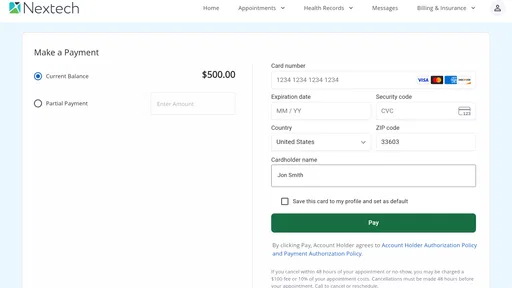
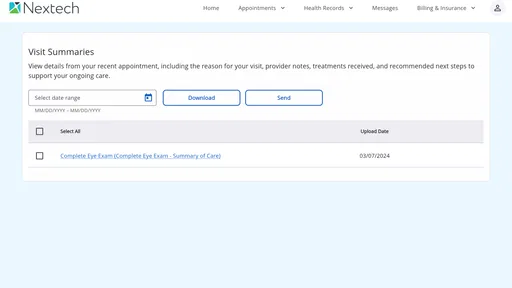
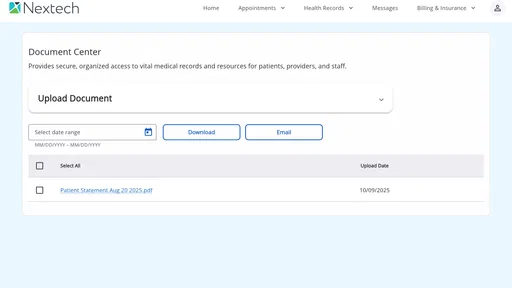
myPatientVisit Portal is a digital patient-access platform that allows users to connect with participating healthcare providers online. Depending on the organization’s configuration, you may be able to review appointments, receive visit information, complete forms, view messages, access care instructions, or join a virtual consultation. Available features can vary, so your experience depends on the clinic or hospital using the service.
How do I sign in to myPatientVisit Portal?
To use myPatientVisit Portal, you generally need an account or invitation provided by a participating healthcare organization. Sign-in details may include your email address, username, password, or a temporary access link. Follow the instructions supplied by your provider and make sure you use the official app or website. If your credentials do not work, contact the healthcare organization rather than creating multiple accounts.
Can I use myPatientVisit Portal for telehealth appointments?
In some cases, myPatientVisit Portal can be used to attend a virtual healthcare visit, but telehealth availability depends entirely on the provider and appointment type. Before the scheduled time, check for a visit link, complete any required forms, and test your internet connection, camera, and microphone. The portal should not be used for emergencies; call local emergency services when immediate medical attention is needed.
Is my health information secure in myPatientVisit Portal?
myPatientVisit Portal is designed to provide access to healthcare information through a protected digital environment, but users should still take normal security precautions. Use a strong, private password, avoid signing in on shared devices, enable device security, and log out when finished. Review the application’s privacy policy and your provider’s terms to understand how information is collected, stored, and shared.
What should I do if I cannot access myPatientVisit Portal or find my appointment?
If you cannot sign in, first check your internet connection, confirm that you are using the correct account details, and use the available password-recovery option if provided. If an appointment, message, or document is missing, the healthcare organization may not have enabled that feature or may not have updated your record yet. Contact the provider’s office or portal support for account-specific assistance.


